In the ever-expanding universe of audio plug-ins, the standard lowpass, highpass, and bandpass filter architectures have long served as the fundamental bread and butter of mixing and sound design. Yet, while these traditional topologies are reliable, they can occasionally lead to sonic monotony. Enter MNTRA Instruments, a developer renowned for pushing creative boundaries through organic sampling and unconventional interface design. Their latest release, FLTRS, boldly disrupts the status quo.
Combining an astounding 37 distinct filter algorithms with a graphical, macro-driven control paradigm inherited from their flagship virtual instrument MNDALA 2, FLTRS transcends the traditional boundaries of passive frequency shaping. This is not merely a tool for cutting highs or boosting lows; it is a dynamic, multi-dimensional sound-sculpting powerhouse.
By mapping complex parameters across three independent spatial axes (X, Y, and Z), FLTRS empowers producers to morph between analog simulations, spectral anomalies, drive circuits, and envelope-followers on the fly. This comprehensive guide provides an exhaustive look into FLTRS, breaking down its architecture, exploring its diverse algorithm library, detailing its macro and modulation mechanics, and offering actionable workflows to infuse your tracks with grit, character, and organic motion.
Detailed Chronology & Architectural Walkthrough
To fully appreciate what FLTRS brings to the modern studio ecosystem, one must trace how MNTRA developed its signature effect philosophy. Following the critical success of effect units like BRUITAGE (distortion) and BOREALIS (reverb), FLTRS was conceptualized as the frequency-domain centerpiece of MNTRA’s spatial-effects collection. The core engineering goal was to divorce complex filter manipulation from tedious parameter-by-parameter automation, replacing it with a fluid, tactile workflow centered on three interactive axes.
The Perform View: A Bird’s-Eye Perspective
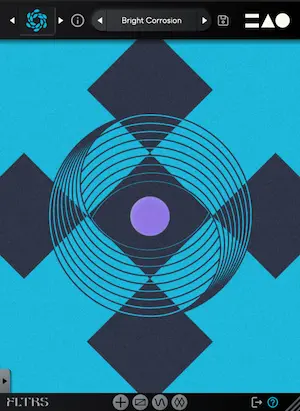
When you instantiate FLTRS on a track, your primary workspace is the Perform View. This interface provides a real-time visual representation of the X, Y, and Z macro axes, each codified by a distinct geometric shape:
The Circle
The Triangle
The Equal Sign (=)
Hovering your mouse over any of these central graphic elements transforms your cursor into the corresponding shape. Clicking and dragging directly controls every underlying parameter linked to that specific macro axis. At the bottom of the interface, the plug-in displays the associated parameters alongside their active percentage values, giving you instant visual feedback on how heavily a macro is driving the sound.
Flanking the central workspace is the Control Panel on the left. This panel houses the essential controls for whatever filter algorithm is currently selected. While the parameters shift dynamically depending on the chosen algorithm, standard main controls typically include cutoff frequency, resonance, and a third algorithm-specific variable.
At the upper and lower boundaries of the interface, you will find input and output gain sliders, alongside a global dry/wet mix control. Should you prefer an uncluttered view of your GUI, the Control Panel can be instantly hidden by clicking the arrow tab at the base of the window.
Accessing advanced pages—such as the Animod modulation section, parameter expansion views, and the mastering suite—is as effortless as clicking the dedicated icon tabs arranged neatly across the bottom of the screen.
Supporting Context, Metrics, and Algorithm Exploration
At the heart of FLTRS’s staggering sonic versatility lies its library of 37 unique filter algorithms. Eschewing a one-size-fits-all approach, MNTRA has meticulously modeled and synthesized a vast array of legendary analog hardware topologies alongside forward-thinking digital designs.
Navigating the Algorithm Ecosystem
To select an algorithm, click the primary logo positioned in the upper-left corner of any screen. This action opens the effect browser, where you can inspect detailed documentation for each model. Alternatively, you can click the directional arrows flanking the logo to cycle through the library on the fly.
The algorithm collection is broadly split into several historic and experimental categories:
Classic Analog Ladders: Authentic emulations of legendary Moog-style ladder filters, delivering warm, self-oscillating lowpass responses that melt into heavy overdrive.
Vintage Synthesizer Models: Recreations of Korg’s aggressive MS-20 filter circuits, Sallen-Key topologies, and vintage polysynth filters found in the Roland Jupiter-6, Juno series, and modern OTA-style (Operational Transconductance Amplifier) architectures.
Experimental & Spectral Filters: Wild, unconventional algorithms designed for cutting-edge sound design, metallic resonation, feedback loops, and spectral smearing.
Starting Points: The "Elements" Presets
Because FLTRS eschews a standard initialization preset, MNTRA has populated the preset browser with a category known as Elements. These are foundational, unmodulated starting points for every single algorithm in the plug-in.
Auditioning the Elements list is the single best way to understand the inherent character of each filter. For instance, loading the Feedback Mesh Filter introduces an immediate, complex metallic resonance to a pristine synth line. Switching to the Odysseus Filter introduces sweeping harmonic shifts, while the Sallen Key Filter tightens the low-end transients with a snappy, analog bite.
Mastering Macros and Advanced Modulation
Once you have selected an algorithm, the true power of FLTRS unlocks through its macro-mapping and modulation framework.
Working with Spatial Macros
Every parameter in the Control Panel features a small icon on its left edge. This icon explicitly designates which of the three macro axes (Circle, Triangle, or Equal Sign) governs that parameter.
To fine-tune how a macro behaves, you can click the parameter icon, right-click the control, or open the Control Mapping Window. Here, you are presented with response tables that visualize how the effect scales across the macro’s range. Clicking on the envelope display lets you reshape the curve. Expanding the lower-right square opens a macro-view containing an expansive library of custom envelope shapes.
Top Pro-Tip: Users frequently make the mistake of attempting to click and drag directly on parameter graphics (such as a cutoff knob) within the Perform View. Unless that parameter is explicitly assigned to manual control, dragging will yield no result. To make direct, unmodulated adjustments, simply switch the parameter’s assignment icon to the Hand graphic.
Beyond mouse manipulation, these macros can be tied directly to DAW automation lanes. Automating a macro to slowly close the cutoff of a lowpass filter over an 8-bar breakdown introduces smooth, organic tension that feels far more natural than traditional static automation.
The Animod Modulation Engine
For self-generating motion, FLTRS features Animod, a comprehensive modulation suite housing three complex modulators and a robust envelope follower.
Each modulator offers a massive variety of wave shapes—including sine, triangle, square, and sample-and-hold random waveforms—alongside a dedicated step sequencer for rhythmic modulation. Every modulator includes independent rate and intensity controls, which can themselves be mapped to manual control, macro axes, or even other modulators.
This ability to route modulation on modulation (such as assigning an LFO to modulate the rate of another LFO) creates shifting, non-linear rhythmic patterns that prevent your productions from sounding static or repetitive. Visual feedback is provided via dedicated Paths tables and real-time meters.
The Envelope Follower
For transient-heavy material like drum busses, percussion loops, and aggressive basslines, the built-in envelope follower is an indispensable asset. Operating similarly to the envelope followers found in high-end DAWs, it tracks the amplitude of an incoming audio signal and translates it into a dynamic modulation source.
Featuring adjustable threshold, attack, and release parameters (which can be linked via a convenient chain icon), the envelope follower allows you to tie filter movements directly to the rhythm of your performance. By setting the threshold to trigger precisely on the transient peaks of a bassline, you can force the filter cutoff to snap open or duck down with every single note hit, imparting an organic pumping effect that breathes life into static tracks.
Future Outlook and Professional Verdict
The signal chain within FLTRS culminates in a dedicated Mastering Section. Positioned right before the output stage, this section includes a precision parametric equalizer for final tonal balancing, coupled with a mastering-grade compressor and limiter featuring selectable Modern and Vintage modes. This ensures that even when pushing the filters into extreme, self-oscillating territory, your peaks remain controlled and your mix headroom is preserved.
At its core, FLTRS is a bridge between the intuitive, tactile nature of hardware control surfaces and the deep, algorithmic complexity of modern software design. By reimagining how filters are modulated, controlled, and combined with saturation and compression, MNTRA Instruments has delivered an essential tool for electronic music producers, sound designers, and mix engineers alike.