Executive Overview
In the crowded landscape of virtual instrument software, sample players often conform to a familiar, utilitarian blueprint. Instruments like Native Instruments’ Kontakt have defined the industry standard for decades, offering reliable playback mechanisms, scripting potential, and ubiquitous library support. However, MNTRA Instruments has consistently carved out a distinct niche by prioritizing organic textures, acoustic-electronic hybridity, and deeply immersive user interfaces. Their flagship free sound engine, MNDALA 2, represents a radical departure from conventional sample-playback paradigms.
Rather than relying strictly on standard menu-diving or static waveform displays, MNDALA 2 is engineered around Real-Time Parameter Controls (RTPCs) and dynamic, sound-morphing axes. MNDALA 2 serves as a robust free container designed to power MNTRA’s proprietary sample library ecosystem. By combining Extended Resolution Audio (32-bit/384kHz ultrasonic capture), multi-layered sample architecture, built-in synthesisers, step sequencers, and the AniMod global modulation system, the engine offers electronic music producers and sound designers an unusually deep playground.

For the uninitiated, loading up MNDALA 2 for the first time can feel slightly intimidating. Its fluid, organic visual language and unconventional workflow break away from traditional DAW-style mixing consoles. Yet, once producers understand the foundational logic of its macro axes and modular routing pages, the engine transforms into an exceptionally flexible performance and composition tool. This guide provides a thorough, authoritative walkthrough of MNDALA 2, detailing its architecture, navigation, synthesis parameters, and advanced modulation systems to help you unlock the full potential of this powerful free platform.
Detailed Chronology: Navigating the MNDALA 2 Ecosystem
To master MNDALA 2, one must first understand its structural workflow—moving from initial installation and library management to deep-level sound sculpting within its primary GUI views.

1. Installation, Library Management, and the Preset Browser
The journey begins on the MNTRA Instruments website, where users can download the free MNDALA 2 sound engine. Once the plugin is installed and instantiated within your Digital Audio Workstation (DAW) of choice, your first stop is the Library tab.
MNTRA offers a diverse ecosystem of both free and paid instrument packs. Regardless of whether you download a complimentary tool or a premium acoustic expansion, the sonic fidelity remains uniformly pristine. This is primarily because the MNDALA 2 engine is built to handle Extended Resolution Audio, capable of processing ultrasonic sample content recorded at a staggering 32-bit/384kHz. This ultra-high-resolution capture preserves micro-transients, harmonic overtones, and subtle physical resonances that are often lost in standard 24-bit/48kHz formats, giving pitch-shifted and time-stretched material remarkable clarity.

When acquiring a new library, the engine prompts you to designate a storage location for the sample assets—a process you must repeat for each new library addition.
Once downloaded, you navigate to the Preset Browser (conveniently located in the upper-left corner of the interface). Here, producers can filter and select patches based on Instrument, Type, Character, and specific Presets. The browser also allows you to modify factory presets, organise subfolders, and save your own custom sound design iterations.

2. The Perform View and Real-Time Parameter Controls (RTPCs)
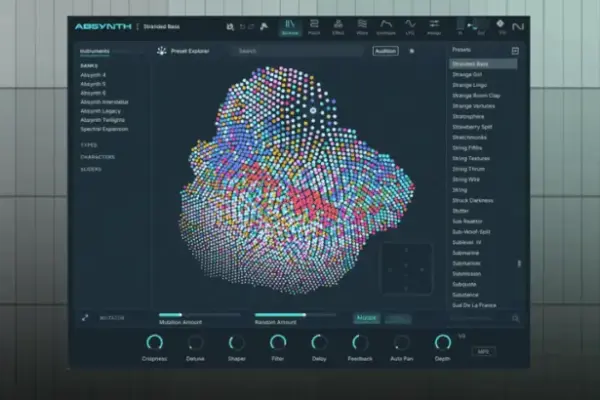
Once a preset is loaded, you are greeted by the Perform View. Similar to the Play View found in advanced software synths like Arturia’s Pigments, the Perform View is designed for active composition and performance rather than tedious technical editing. It also showcases MNTRA’s distinct visual artistry: each instrument features a dynamic, responsive graphic that morphs, warps, and reacts in real-time as you manipulate the core macro controls.
At the heart of MNDALA 2 are Real-Time Parameter Controls (RTPCs). Because a single preset can comprise up to six independent sample layers—each equipped with its own distinct modulation routings, effects, and sequencers—managing individual parameters manually would quickly become unwieldy. MNTRA solves this by fundling complex, multi-layered processing into three global macro axes: X, Y, and Z.

- X-Axis: Represented graphically by an equal sign (
=). - Y-Axis: Represented graphically by a triangle ($Delta$).
- Z-Axis: Represented graphically by a circle ($bigcirc$).
These symbols appear universally across the graphical user interface (GUI). Whenever you see one of these shapes next to a parameter, it indicates that the parameter is mapped to—or can be linked to—that specific macro axis.
Producers can manipulate these axes in the Perform View by dragging the translucent sliders on the left side of the screen, by interacting directly with the central animated graphic, or by mapping them to physical hardware controls on a MIDI controller. Automating these axes directly within your DAW’s arrangement view unlocks the true compositional power of MNDALA 2, turning static samples into evolving, living soundscapes. (Pro tip: If you ever lose track of what a specific button or icon does, simply hover your mouse over it and look at the bottom-left corner of the interface for a helpful contextual explanation.)

Supporting Context & Metrics: Unpacking the Sound Engine
Moving beyond the surface-level Perform View reveals a deeply sophisticated architecture. MNDALA 2 is split into several dedicated tabs, each handling a specific dimension of sound design.
The Matrix Page
Positioned directly to the right of the Perform tab, the Matrix Page is where macro-to-parameter routing takes structural form. Specifically, this page governs the volume and pan behaviors of each of the six sampler lanes relative to the X and Y axes.

Each sampler lane features an individual gain and pan table for both axes. The left side of the table dictates the starting position of the macro, while the right side represents its ending position. By default, these tables follow a standard linear ramp rising to the right, but producers are by no means restricted to this template.
Clicking the square icon in the bottom-right corner expands the table for precision editing. Here, users can select from a library of preset modulation shapes or draw custom curves manually by clicking along the line to add nodes, then dragging and bending the curves to achieve complex crossfading and spatial automation. Discreet visual reminders of the circle, triangle, and equal signs sit on the right side of the screen, allowing sound designers to test their macro programming on the fly.

The Samplers Page: Synthesis, Generators, and Colours
If the Perform and Matrix pages handle macro navigation, the Samplers Page is where core synthesis takes place. Arranged in a vertical column on the left are the six available sampler slots. Selecting a slot allows you to manipulate its underlying sample map—which often contains multiple dynamic articulations—using a comprehensive suite of parameters on the right.
Key shaping tools include:

- Velocity Range and Velocity-to-Gain Tables: (Available when sample maps feature multiple dynamic layers).
- Tuning and Vibrato Controls: For pitch modulation and organic pitch drift.
- AHDSR Envelopes: Attack, Hold, Decay, Sustain, and Release points to sculpt amplitude over time.
- Sample Start Modulation: Allowing incoming velocity to alter the playback starting point of the sample.
- Multi-Mic Mixer, Heat Saturation, and EQ Settings: Positioned conveniently next to the primary sample volume knob.
Many parameters feature a Link Button (such as envelope settings and portamento). Activating this forces all samplers within the current preset to uniformly conform to the adjusted parameter value, streamlining workflow when dealing with multi-layered patches.
Beneath these sample-shaping controls lie slots for a Generator and three insert effects (dubbed Colours), with a fifth slot (Shaper) reserved for a future software update.

- Generators: These function as synth-style oscillators that can either supplement an existing sample or operate entirely independently with no sample loaded. Three types are available: Additive, FM (Frequency Modulation), and Simple Synth (a virtual-analog single-oscillator offering sine, triangle, square, sawtooth, and noise waveforms).
- Colours Slots: These are stereo effect inserts featuring an expansive menu of processors ranging from lush reverbs and delays to specialized filters, modulation effects, and compressors. Once an effect is selected, up to three macro parameters appear beneath it, allowing producers to pin the dry/wet mix or core effect parameters directly to the macro axes or modulators.
- Global FX: In addition to per-sample effects, MNDALA 2 provides five stereo bus effects accessible via the Global FX tab.
The Sequencers Section
For rhythmic movement, MNDALA 2 includes a robust step sequencer section. Each sampler lane features its own dedicated sequencer, complete with individual tracks for Note, Velocity, and Length.
As with the synthesis parameters, clicking the link button standardizes these three settings across all samplers in the patch simultaneously. Each lane also includes dedicated randomize and reset buttons for happy accidents. At the base of the sequencer interface, producers can dial in swing/shuffle, playback speed (synced natively to the DAW tempo), total step count, and Stride. Stride is a particularly creative parameter that defines the number of sequencer steps skipped between each triggered note (e.g., a setting of 2 triggers a sequencer note every other beat, while 1 fires on every beat).

The AniMod Global Modulation System
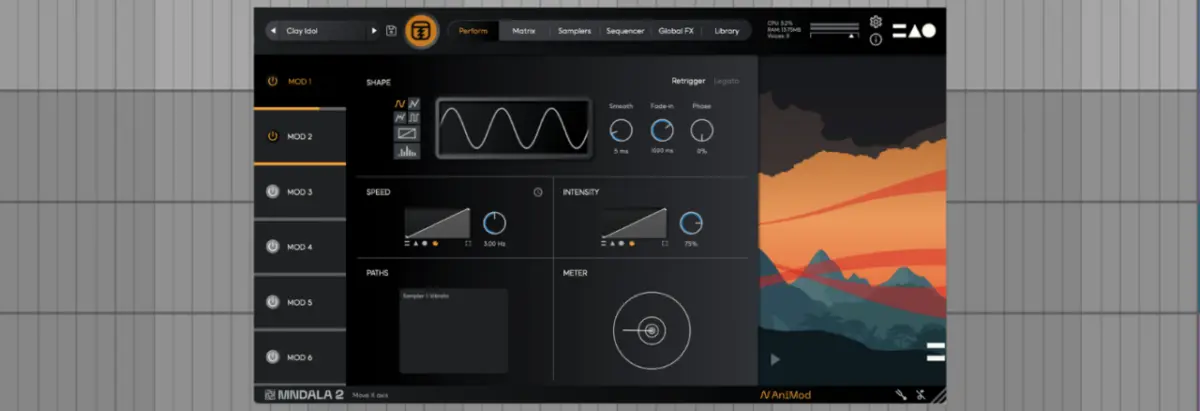
For complex, autonomous movement, MNDALA 2 features the AniMod Global Modulation System, accessed by clicking the "AniMod" label in the lower-right corner.
Functioning similarly to modulation matrices in advanced polyphonic hardware synths, AniMod lets you route source modulators to various targets across the instrument’s samplers. Six modulation sources are arranged in a column on the left, each featuring comprehensive control sets.

The Shape parameter offers standard waveforms including sine, triangle, square, random, custom, and stepped types. Selecting Custom opens a drawing interface where users can plot custom modulation shapes using nodes. Furthermore, you can adjust the speed and intensity of each modulator, route them directly to the X, Y, and Z macro axes, and monitor assignment traffic via the built-in Paths window.
The Tuning Section
Microtonality and alternate temperaments are fully supported via the Tuning section, accessed by clicking the tuning fork icon in the lower-right corner. Tuning can be adjusted on a per-sampler basis, or unified across all samplers via the link button. The engine includes a wide array of historical and experimental tuning presets, alongside a manual editor for creating custom microtonal scales.

Official Statements & Community Engagement
MNTRA Instruments has consistently emphasized that MNDALA 2 was built not merely as a commercial container, but as an open-ended artistic ecosystem. By offering the engine entirely free of charge alongside a substantial catalogue of complimentary sound tools (available via the MNTRA Shoppe), the company aims to democratize advanced cinematic and electronic sound design.
In parallel with software development, MNTRA’s visionary founder, Brian D’Oliveira, has engaged deeply with the broader music production community. In a recent appearance on the Attack Podcast, D’Oliveira discussed the philosophy behind capturing organic acoustic artifacts, the technical hurdles of Extended Resolution Audio, and the future of hyper-expressive virtual instruments. Producers looking to dive deeper into the creative mindset behind MNTRA can stream the full episode on Apple Podcasts or Spotify.

Future Outlook
As virtual studio technology continues to evolve, the demand for static, ROMpler-style sample libraries is steadily declining. Modern producers require instruments that feel alive, responsive, and deeply integrated into dynamic performance workflows.
With MNDALA 2, MNTRA Instruments has established a formidable blueprint for the future of sample playback. The engine successfully bridges the gap between acoustic authenticity and electronic sound design manipulation. Features like the upcoming Shaper slot hint at a roadmap of continuous expansion, ensuring that the platform will remain at the cutting edge of virtual instrumentation.

Whether you are scoring cinematic sequences, crafting intricate IDM rhythms, or seeking organic textures for deep house and techno productions, mastering MNDALA 2’s macro-driven universe offers a significant creative return on investment.
To explore the software further, download free instrument expansions, or browse MNTRA’s expansive sample catalogue, visit the official MNTRA Instruments website. Don’t forget to check out their collection of free tools available here.